Introduction to Changing Filament in 3D Printers
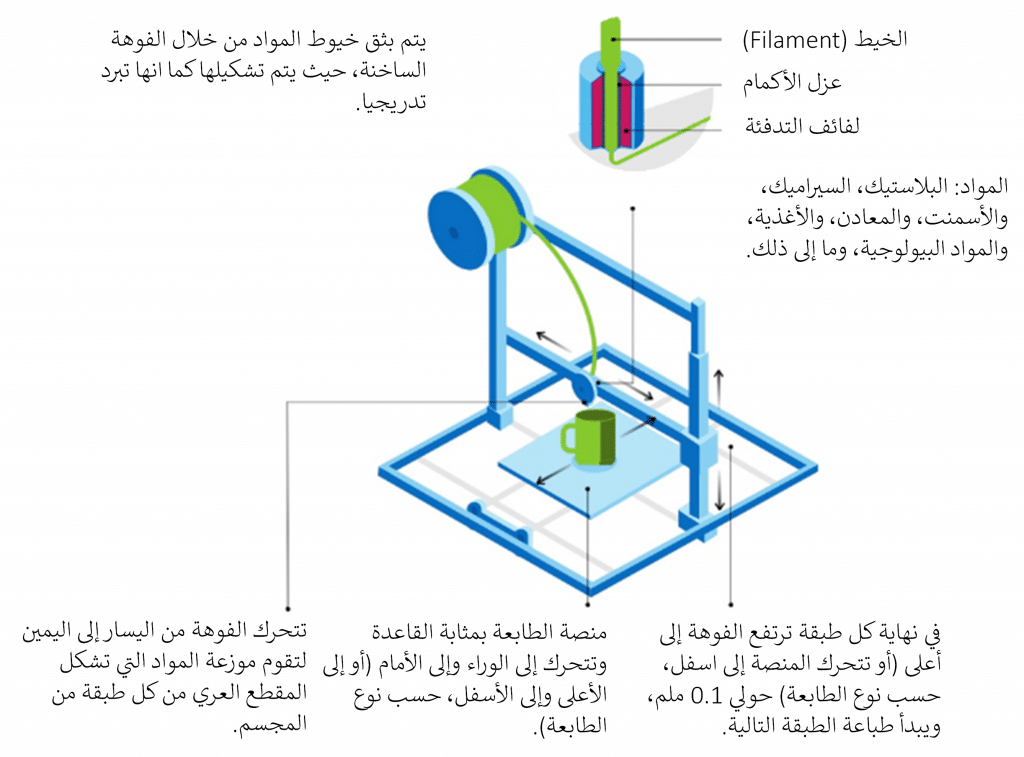
Changing filament in 3D printers is an essential process for maintaining print quality and versatility. Whether you want to change the color, have run out of filament, or want to try a different type of plastic, understanding how to perform this process correctly is crucial.
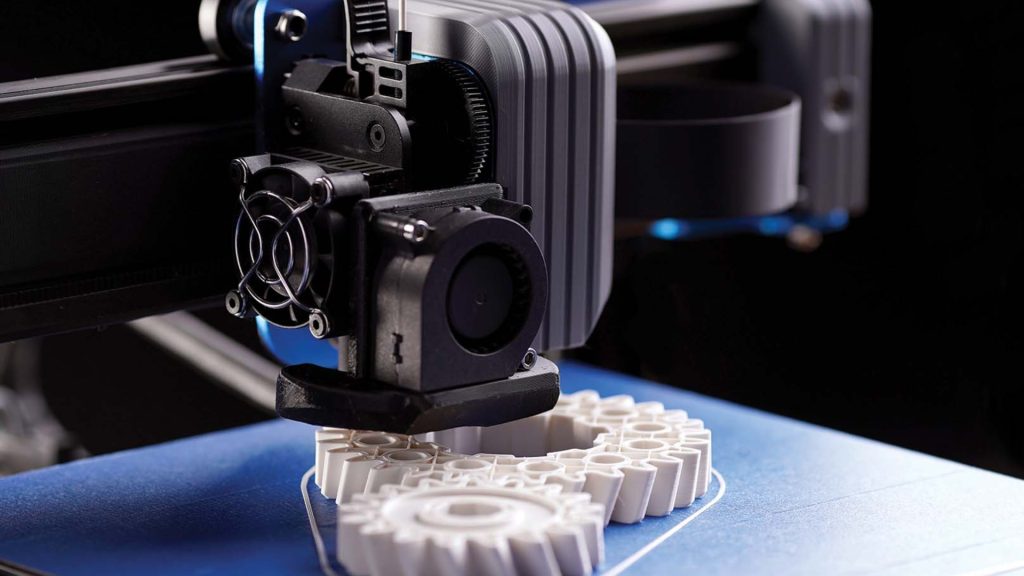
In this article, we will review the steps for changing filament in 3D printers in a simple and effective manner, taking into account the different types of plastics, common problems you may encounter, and how to solve them. You can also explore our 3D printing services at Printie 3D to get the best results.
Why Do You Need to Change Filament?
There are several reasons why you might need to change the filament in your 3D printer:

- Running Out of Filament: The most common reason is simply running out of the current filament spool.
- Changing Color: You may want to change the printing color to achieve a multi-colored design.
- Changing the Type of Plastic: Different types of plastic have different properties, and you may need to switch between them to meet the requirements of your project. For example, you may need to use PLA for printing easy-to-print prototypes, or ABS for parts that require higher heat resistance.
- Experimenting with New Materials: The world of 3D printing is constantly evolving, and new materials are emerging regularly. You may want to experiment with these materials to explore new possibilities.
- Fixing Problems: Sometimes, you may need to change the filament to fix problems such as nozzle clogging.
Types of Plastics Used in 3D Printing
There are many types of plastics used in 3D printing, each with its unique properties. Here are some of the most common types:
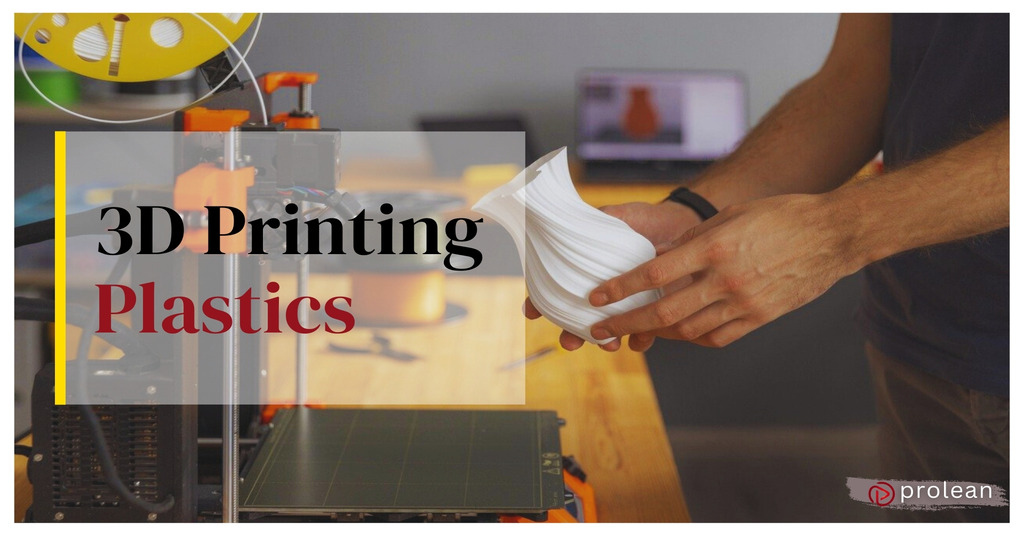
- PLA (Polylactic Acid): PLA is a popular choice for beginners due to its ease of printing and low emissions. It is derived from renewable resources such as corn starch or sugar cane. The recommended printing temperature ranges between 180-220°C.
- ABS (Acrylonitrile Butadiene Styrene): ABS is known for its strength, durability, and heat resistance. However, it requires a higher printing temperature (210-250°C) and an enclosed printing chamber to minimize warping and shrinkage.
- PETG (Polyethylene Terephthalate Glycol): PETG combines the ease of printing of PLA with the strength of ABS. It is water-resistant and has good chemical resistance. The recommended printing temperature ranges between 220-250°C.
- TPU (Thermoplastic Polyurethane): A flexible material used for printing parts that require bending or elasticity. The recommended printing temperature ranges between 210-230°C.
- Nylon: Known for its strength, durability, and abrasion resistance. It requires a high printing temperature (240-260°C) and may need to be dried before printing to prevent moisture absorption.
Safety Precautions
Before starting the filament changing process, it is important to take some safety precautions:
- Wear Gloves: To protect your hands from hot surfaces.
- Be Careful When Handling the Hot Nozzle: Avoid touching the nozzle directly to prevent burns.
- Ensure the Area is Well-Ventilated: Especially when using materials like ABS that may emit fumes.
- Disconnect the Printer from the Power: Before performing any internal maintenance.
Steps to Change Filament
Here are detailed steps for changing filament in your 3D printer:
1. Preheating the Nozzle
Turn on the printer and heat the nozzle to the appropriate temperature for the type of plastic currently in use. You can find these settings in the printer's control menu. For example, if you are using PLA, heat the nozzle to around 200°C.
2. Unloading the Old Filament
Once the nozzle reaches the required temperature, use the control menu to issue an "Unload Filament" or "Retract" command. If your printer does not have this option, you can do it manually by:
- Pressing the Extruder Lever to release the filament.
- Gently pulling the filament out of the extruder. If you encounter resistance, stop and check that the nozzle is hot enough.
3. Loading the New Filament
Now, insert the new filament into the extruder. Make sure the end of the filament is straight and clean to ensure easy insertion. Push the filament until you feel resistance, then press the extruder lever and push the filament until it starts to come out of the nozzle. You can consult our knowledge base for more information on different types of plastics.
4. Priming the Nozzle
Once the new filament comes out of the nozzle, print a few centimeters to make sure that the old color has been cleaned out and that the new filament is flowing smoothly. You may need to wipe the nozzle with a clean cloth to remove any plastic residue.
Troubleshooting
You may encounter some problems during the filament changing process. Here are some common problems and how to solve them:
- Filament Breaks During Unloading: The filament may be old or brittle. Try heating the nozzle a little higher before unloading.
- Nozzle is Clogged: Use a Nozzle Cleaning Needle to remove the blockage. You can also try performing a "Cold Pull" by heating the nozzle, then slowly cooling it down and pulling the filament out while it cools.
- Filament Does Not Stick to the Printing Surface: Make sure the printing surface is level and clean. You can also use adhesive or tape to increase adhesion.
Additional Tips
- Store Filaments Properly: Store filaments in a dry, cool place to prevent moisture absorption, which can affect print quality.
- Use a Filament Dryer: If you live in a humid area, you may need to use a filament dryer to remove moisture before printing.
- Update Printer Software: Make sure your printer software is up to date to ensure optimal performance.
- Don't Hesitate to Ask for Help: If you are having trouble changing filament, do not hesitate to contact our technical support team at Printie 3D for assistance. You can visit our Contact Us page for contact information.